Lanterna Education | Online IB Tutoring
DP1DP2StudentsGroup 5: MathsUltimate GuideExamsStudy Skills

How to use the GDC effectively: Ultimate Guide

Master your IB Math AA/AI Paper 2 with this GDC guide. Learn 5 essential calculator functions (TI-84/NumWorks) like finding intersections and probability distributions to save time and score higher.

Lanterna Team
January 1, 20268 min read
Banner

How to Use the GDC Effectively: The Ultimate Guide for IB Math AA/AI Paper 2

As former IB graduates and experienced tutors, we've seen firsthand how a well-mastered Graphic Display Calculator (GDC) can transform your IB Math Paper 2 performance. This isn't just about punching numbers; it's about leveraging a powerful tool to save precious time, minimize errors, and ultimately secure those higher marks.

This guide will equip you with the insider knowledge to make your GDC an extension of your mathematical thinking, rather than a mere calculator.

Here’s what you'll gain from this guide:

  • Unlock Efficiency: Discover essential GDC functions that streamline problem-solving in Paper 2.
  • Boost Accuracy: Learn how to correctly apply calculator features to avoid common mistakes.
  • Master Key Concepts: Understand how your GDC supports topics from finding intersections to probability distributions.
  • Confidence in Exams: Approach your Paper 2 with the assurance that your GDC is a reliable ally.

Your GDC: An IB Math Paper 2 Game-Changer

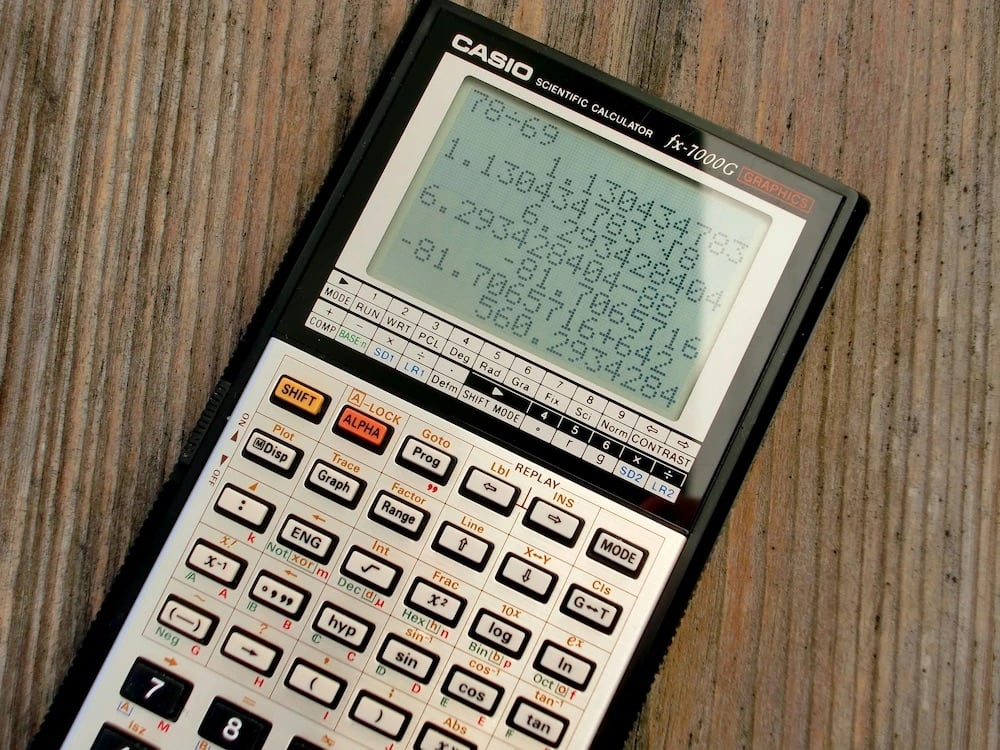
IB Math Analysis and Approaches (AA) and Applications and Interpretation (AI) Paper 2 are designed to test your understanding of mathematical concepts in context, often requiring the use of a GDC. While the questions are structured to assess your problem-solving skills, the GDC is your secret weapon for executing calculations quickly and accurately. This guide focuses on the TI-84 series and NumWorks, two popular choices among IB students.

Let's dive into five essential GDC functions that every IB Math student should master.


1. Finding Intersections of Functions

Why it's essential: Many Paper 2 problems involve solving systems of equations or finding where a function crosses the x-axis (roots) or intersects another function. Using the GDC's graphical solver is often faster and less prone to algebraic error than manual methods.

TI-84 Series (e.g., TI-84 Plus CE)

  1. Enter Functions: Press Y= and input your two functions, Y1 and Y2.
  2. Graph: Press GRAPH. Adjust your window (WINDOW) if necessary to see the intersection clearly.
  3. Calculate Intersection: Press 2nd then TRACE (CALC), and select option 5: intersect.
  4. Select Curves: The calculator will ask "First curve?". Move the cursor near the intersection on the first function and press ENTER. Do the same for "Second curve?".
  5. Guess: Move the cursor close to the intersection point you want to find and press ENTER. The calculator will display the intersection coordinates.

NumWorks

  1. Grapher Application: Go to the "Grapher" application.
  2. Add Functions: Enter your functions (e.g., f(x) = ..., g(x) = ...).
  3. Plot: Select "Plot" to view the graphs.
  4. Calculate Intersection: Navigate to the "Calculate" tab (usually by pressing OK from the graph view or using arrow keys). Select "Intersection".
  5. Select Curves: The calculator will automatically display the intersection points. You can scroll through them if there are multiple.
The Lanterna Tip: Can't see the intersection? Your WINDOW settings are likely off. Zoom out first (ZOOM -> 3: Zoom Out) to find the general area, then adjust your Xmin, Xmax, Ymin, and Ymax values in the WINDOW menu for a clearer view.

2. Solving Equations (Roots/Zeros) Graphically

Why it's essential: Paper 2 often requires solving equations that are difficult or impossible to solve algebraically. Finding the roots (where f(x) = 0) with your GDC provides a quick and accurate numerical solution.

TI-84 Series

  1. Enter Function: Press Y= and input your function into Y1.
  2. Graph: Press GRAPH. Adjust your window if you can't see where the graph crosses the x-axis.
  3. Calculate Zero: Press 2nd then TRACE (CALC), and select option 2: zero.
  4. Left Bound: Move the cursor to the left of a root and press ENTER.
  5. Right Bound: Move the cursor to the right of the same root and press ENTER.
  6. Guess: Move the cursor close to the root and press ENTER. The calculator will display the root (x-value) and y=0.

NumWorks

  1. Grapher Application: Go to the "Grapher" application.
  2. Add Function: Enter your function (e.g., f(x) = ...).
  3. Plot: Select "Plot".
  4. Calculate Roots: Navigate to the "Calculate" tab. Select "Roots".
  5. View Roots: The calculator will automatically display the x-intercepts (roots) of the function.

3. Probability Distributions (Normal and Binomial)

Why it's essential: Calculating probabilities manually using formulas and tables is time-consuming and prone to error. The GDC automates this, allowing you to focus on interpreting the question and applying the correct distribution.

TI-84 Series

Normal Distribution

  • Normal CDF (Cumulative Distribution Function): To find P(X < a) or P(a < X < b).
    1. Press 2nd then VARS (DISTR).
    2. Select 2: normalcdf(.
    3. Enter lower bound, upper bound, mean (μ), standard deviation (σ).
      • For P(X < a), use a very small number like -1E99 for the lower bound.
      • For P(X > a), use a very large number like 1E99 for the upper bound.
  • Inverse Normal (invNorm): To find the x-value given a probability.
    1. Press 2nd then VARS (DISTR).
    2. Select 3: invNorm(.
    3. Enter area, mean (μ), standard deviation (σ). Note: area is the cumulative probability to the left of the desired x-value.

Binomial Distribution

  • Binomial PDF (Probability Distribution Function): To find P(X = k).
    1. Press 2nd then VARS (DISTR).
    2. Select A: binompdf(. (Note: on older models it might be option 0).
    3. Enter trials (n), p, x value (k).
  • Binomial CDF (Cumulative Distribution Function): To find P(X ≤ k).
    1. Press 2nd then VARS (DISTR).
    2. Select B: binomcdf(. (Note: on older models it might be option A).
    3. Enter trials (n), p, x value (k).
    4. Remember: For P(X < k), use binomcdf(n, p, k-1). For P(X > k), use 1 - binomcdf(n, p, k).

NumWorks

Normal Distribution

  1. Probability Application: Go to the "Probability" application.
  2. Distribution Type: Select "Normal".
  3. Parameters: Enter the mean (μ) and standard deviation (σ).
  4. Calculations: Choose the probability type you need (e.g., P(X < x), P(x1 < X < x2)) and enter the values. For inverse normal, select the "x" field under the probability and enter the probability value.

Binomial Distribution

  1. Probability Application: Go to the "Probability" application.
  2. Distribution Type: Select "Binomial".
  3. Parameters: Enter the number of trials (n) and probability of success (p).
  4. Calculations: Select the calculation type (e.g., P(X = k), P(X ≤ k)) and enter your value of k. Remember to use logic for strict inequalities: P(X < k) is the same as P(X ≤ k-1).

4. Regression Analysis

Why it's essential: Paper 2 often presents data sets and asks you to find a model that fits the data, make predictions, or interpret the correlation. Manual regression is impossible in an exam setting.

TI-84 Series

  1. Enter Data: Press STAT, then 1: Edit.... Enter your x-values into L1 and corresponding y-values into L2.
  2. Calculate Regression: Press STAT, then arrow right to CALC.
    • For Linear Regression: Select 4: LinReg(ax+b).
    • For Quadratic Regression: Select 5: QuadReg.
    • For Exponential Regression: Select 0: ExpReg.
  3. Specify Lists: Ensure Xlist is L1 and Ylist is L2. You can store the equation in Y1 for graphing.
  4. Calculate: Press Calculate. The calculator displays the equation coefficients and the correlation coefficient (r and r²). (Note: Ensure DiagnosticOn is enabled from the MODE menu or CATALOG to see r and r²).

NumWorks

  1. Regression Application: Go to the "Regression" application.
  2. Enter Data: Input your x-values in the "X1" column and y-values in the "Y1" column.
  3. Select Model: Navigate to the "Graph" tab to see the scatter plot, then the "Model" tab. Select the type of regression you want (Linear, Quadratic, Exponential, etc.).
  4. Analyze: The calculator will display the equation and the R² value.

5. Solving Systems of Equations

Why it's essential: While finding intersections handles 2-variable systems graphically, your GDC can also solve systems of linear equations with 3 or more variables algebraically, which is a massive time-saver.

TI-84 Series (using Matrix functions)

  1. Enter Matrix: Press 2nd then x⁻¹ (MATRIX). Arrow right to EDIT, select 1: [A].
    • For a system with 3 equations (e.g., ax + by + cz = d), create a 3x4 matrix.
    • Enter the coefficients and constants in order for each equation.
  2. Perform RREF: Quit to the home screen. Press 2nd then x⁻¹ (MATRIX). Arrow right to MATH. Scroll down and select B: rref( (reduced row echelon form).
  3. Select Matrix: Press 2nd then x⁻¹ (MATRIX), select 1: [A] from the NAMES menu, then press ENTER.
  4. Interpret Result: The resulting matrix will have a diagonal of 1s. The final column gives the values for your variables (x, y, z).

NumWorks

  1. Solver Application: Go to the "Solver" or "System of equations" application.
  2. Add Equations: Select "Add an equation" and input your first equation. Repeat for all other equations in the system.
  3. Solve: The calculator will display the values for each variable that solve the system.

General Tips for GDC Mastery

  • Practice Regularly: The more you use your GDC, the more intuitive it becomes. Integrate it into your daily homework, don't just save it for tests.
  • Know Your Shortcuts: Learn the fastest way to access frequently used functions. Every second counts in an exam.
  • Understand the "Why": The GDC is a tool for calculation, not a substitute for understanding. Always know what the numbers it gives you actually mean in the context of the problem.
  • Check Your Mode: Always double-check if your calculator is in Radians or Degrees before starting any trigonometry problem. This is one of the most common sources of lost marks!
  • Battery Life: A dead calculator is a useless calculator. Make sure yours is fully charged or has fresh batteries before every exam.

Mastering your GDC is not about memorizing button sequences; it's about understanding its capabilities and knowing when and how to apply them strategically. By integrating these five essential functions into your study routine, you'll approach IB Math Paper 2 with confidence, efficiency, and a powerful edge.

Related to How to use the GDC effectively: Ultimate Guide

50 IB Math AA IA Topic Ideas
MathsIAsUltimate GuideDP2DP1Students

50 IB Math AA IA Topic Ideas

Master your IB Math AA IA with this comprehensive guide. Find perfect topic ideas that allow deep mathematical exploration, expert examples, structure tips, and common mistakes to avoid for a 7-level score.

The Ultimate Guide to the IB Math AI Internal Assessment
MathsIAsUltimate GuideHL vs SLDP1DP2Students

The Ultimate Guide to the IB Math AI Internal Assessment

Struggling with your IB Math AI IA? Our complete guide breaks down the marking criteria and structure. Find a great topic with our expert tips and successful examples.

IB Math AA vs AI: How to Choose Your Course
MathsUniversityHL vs SLUltimate GuideDP1DP2Students...

IB Math AA vs AI: How to Choose Your Course

Choosing between IB Math AA vs AI? Our guide compares the syllabus, difficulty, and university prerequisites for both SL and HL. Make the best choice for your future.

How to Structure and Format Your IB Math IA
MathsIAsUltimate GuideDP1DP2Students

How to Structure and Format Your IB Math IA

Learn how to structure and format your IB Math IA for top marks. Understand the grading criteria and optimal layout used by high-scoring students.

50 IB Maths IA Topic Ideas: Complete Guide
MathsIAsUltimate GuideDP1DP2Students

50 IB Maths IA Topic Ideas: Complete Guide

Struggling to find an IB Maths IA topic? Explore 50 proven Maths IA topic ideas, hand-picked by an IB expert to inspire your exploration and help you score highly.

Complete Guide to IB Mathematics IA: Choose Topic & Tips
MathsIAsUltimate GuideDP1DP2Students

Complete Guide to IB Mathematics IA: Choose Topic & Tips

Master your IB Mathematics IA. Learn how to choose a great topic, structure your exploration, and understand the 5 official grading criteria for top tips.

IB Maths Study & Calculator Tips for Exams
MathsExamsStudy SkillsUltimate GuideDP1DP2Students

IB Maths Study & Calculator Tips for Exams

Master your IB Maths exams with expert study and calculator tips. Learn essential GDC functions, effective revision strategies, and how to target your weaknesses.

4 IB Math Calculator Hacks
MathsExamsStudy SkillsDP1DP2Students

4 IB Math Calculator Hacks

Master your TI-Nspire for IB Math A&I exams. Get expert calculator tips on N-Solve, Linear Regression, and Probability Distributions to minimize mistakes and maximize scores.

trustpilot - slider -grey bg

Perfectly Matched Tutors

600+ handpicked tutors from across the world with the best background and experience.

Graduates

Graduates

  • Scored 40+ in the IB and 7s in the subjects they teach.

Teachers

Teachers

  • Certified educators with an average of 15 years experience.
Elite

Elite

  • Teachers with IB examiner experience or senior markers
Free IB tutoring trial

Your first hour,
on us.

1 hour of online tutoring in any subject with a 40+ IB graduate who scored a 7 in your subject.

15,000+ students
96% recommend Lanterna to friends & family

No strings attached. By filling out the form you accept our T&Cs.

Stockholm born, Globally present

We are IB experts committed to achieving your academic goals.

about us